There are 2 ways to save audio clips: 1 is Easy : 1 is Advanced
The Easy Way
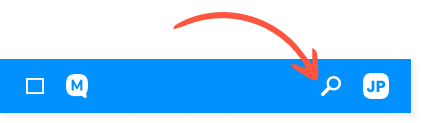
You can press the Search Button on the top navigation.
Then navigate to the “Audio” tab.
In the search bar, enter any word in that language you’re learning.
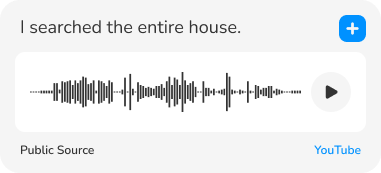
And you’ll get back tons of results of sentences with audio clips.
Note: Currently, many of our clips come from Tatoeba.org. However, there are a growing number of clips made by other Mezasu.com members who use our Advanced Tool.
The Advanced Way
This feature is currently available for Desktop User Only.
While watching videos, you’ll noticed a Red Button next to the play and skip buttons.
This button allows you to record audio directly from videos.
AKA – You can make your own learning material.
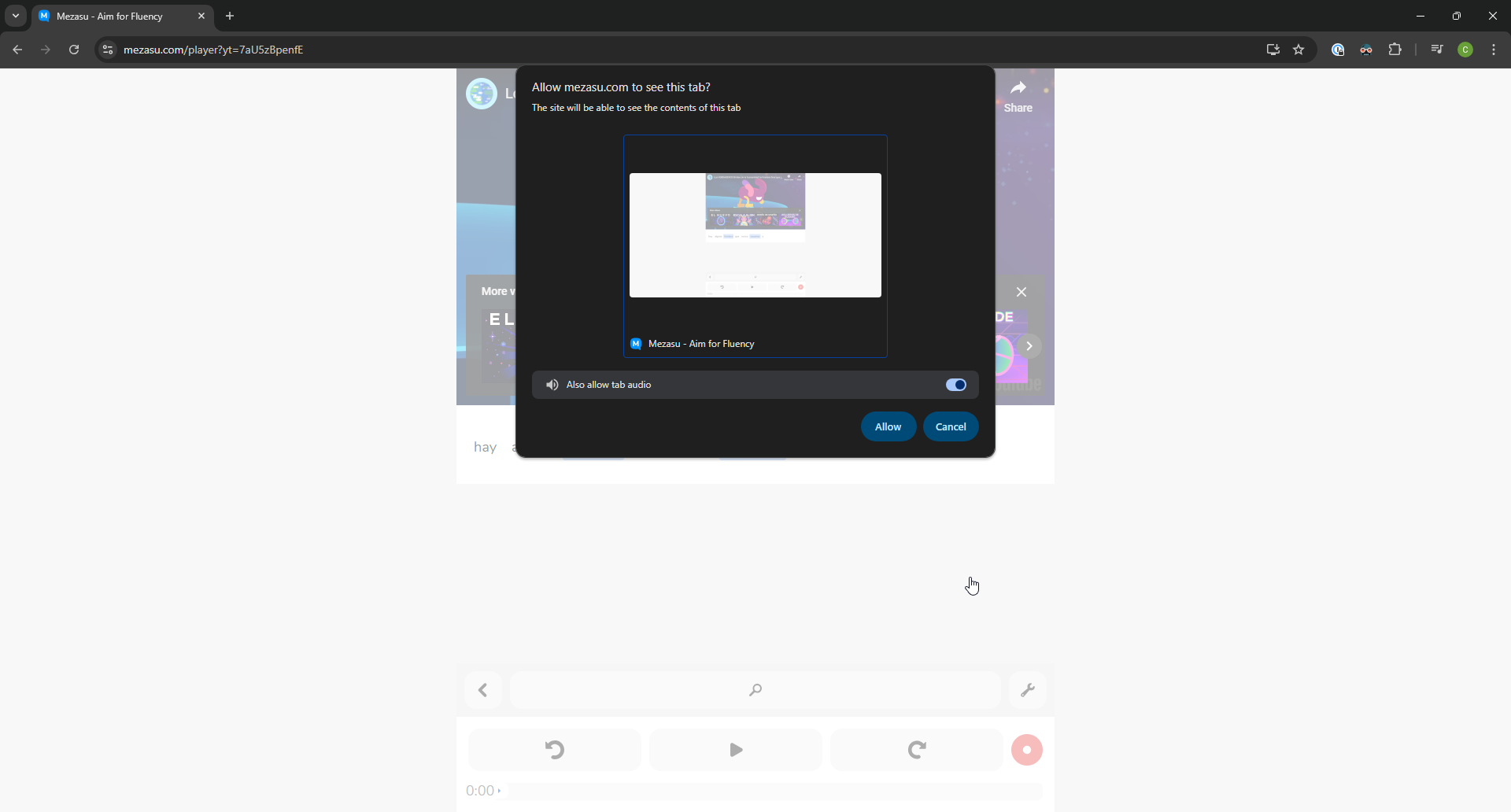
When you click the record button, you will see a screen like the image below.
This is the key to make audio recording work…
It asks for permission to record the screen – but don’t worry, we don’t keep screen data and this permission automatically deactivates when you leave the page.
Important
Make sure “Also allow tab audio” is turned on – recording won’t work without this on.
Click “allow” to being recording (Note: the video will automatically play).
You will see the (Red Record Button) turn into a (Blue Stop Button)
Click this button to stop the recording.
Audio is only recorded for a max of 15 seconds
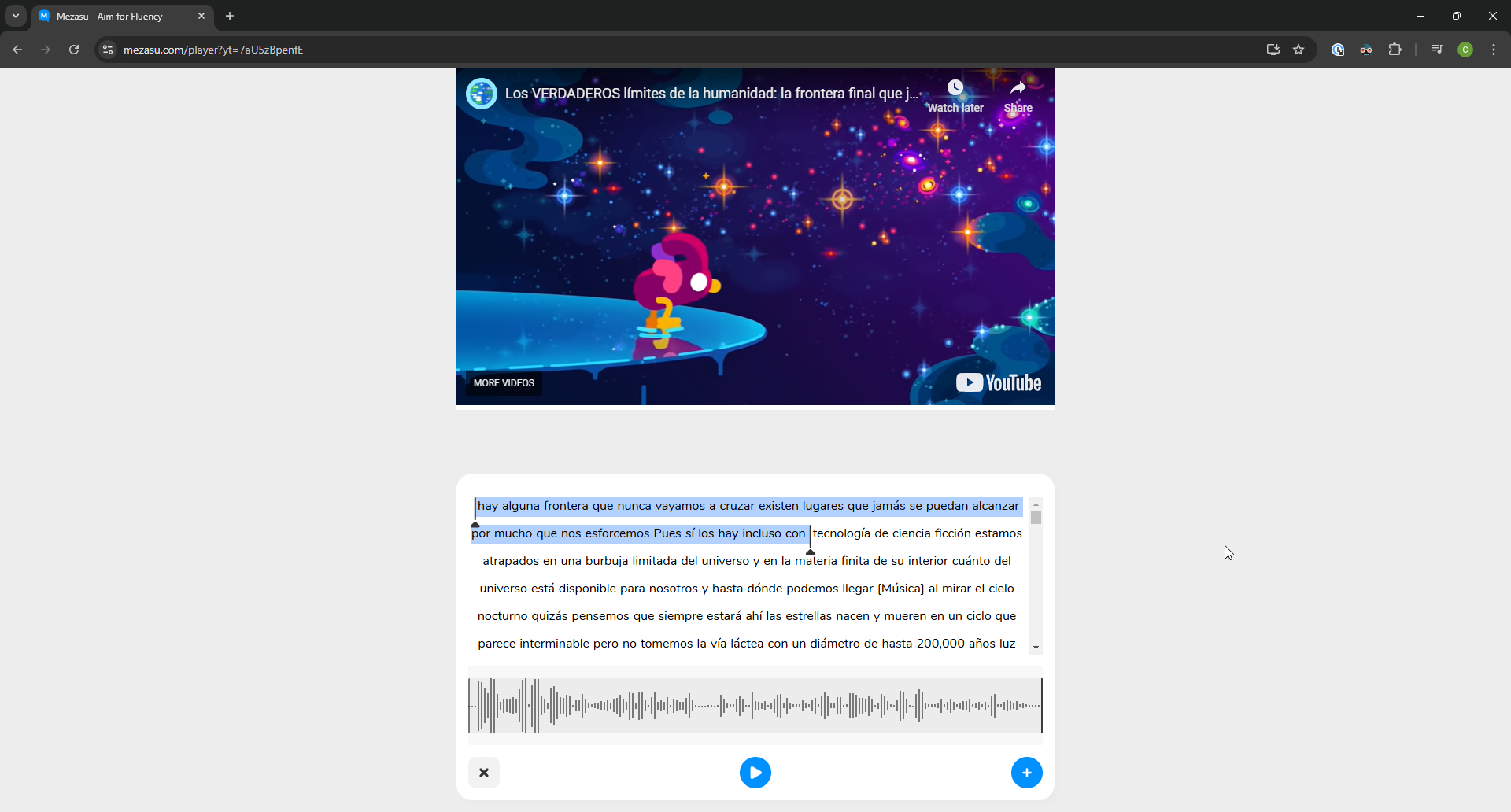
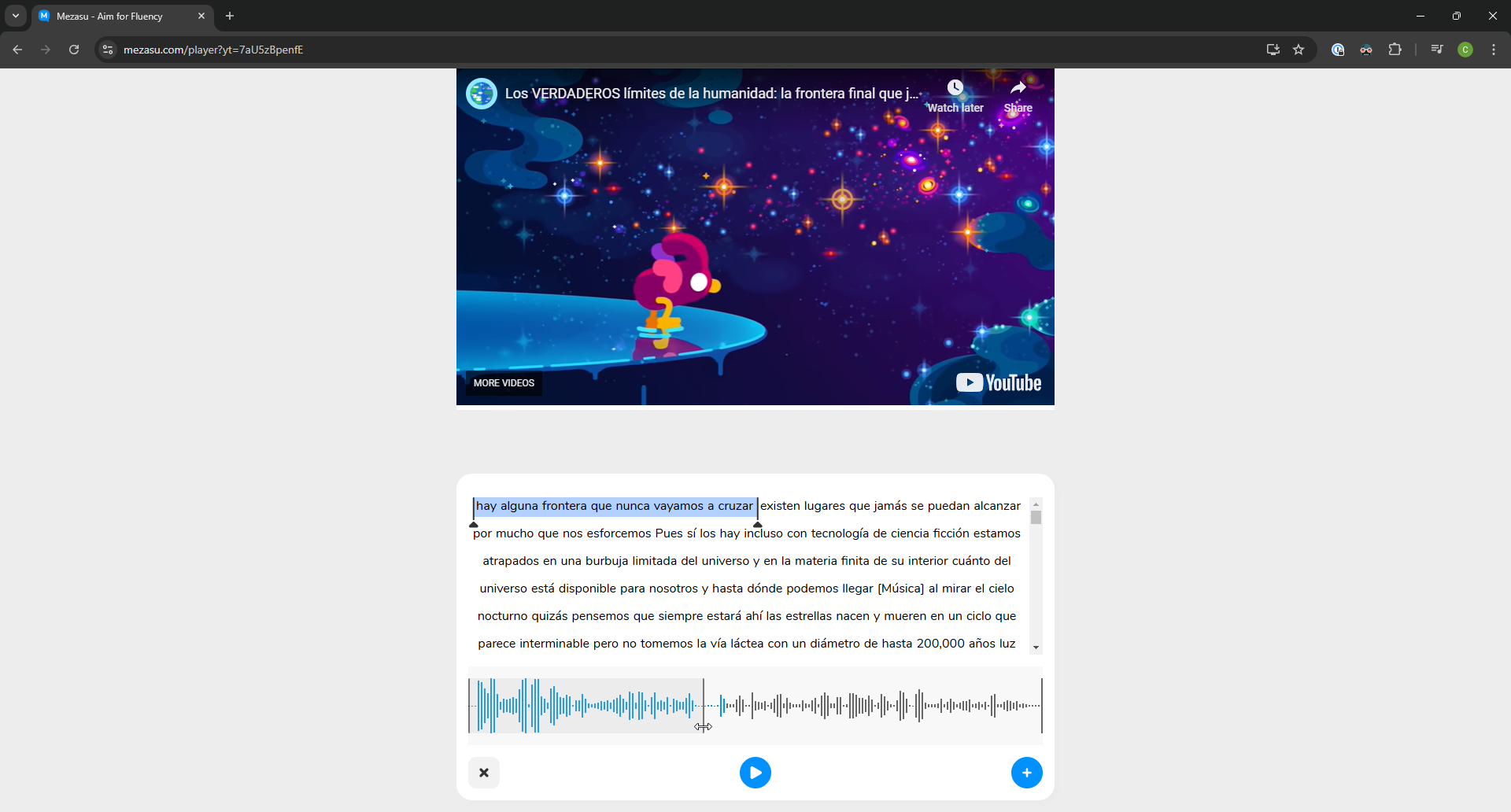
After you stop the recording, you will see the following screen.
Here, you can select exact phrase you want…
AKA – Match the sentence to the audio clip.
Once you selected the exact phrase you want…
Click the (Blue Plus) on the bottom right corner to save
Congratulations! You just saved a clip!
All audio clips made on Mezasu.com are added to a public database for everyone to enjoy. So the more you save the more you help others as well.
Here at Mezasu.com, we do flashcards a little differently. To find out how to get the most from your Review Cards, click the button below 👇